
Most GoHighLevel-to-Google Calendar sync failures come down to one of four causes: an expired or revoked OAuth token, a calendar stuck mid-sync after a settings change, a missing "make changes to events" permission on the Google side, or confusion between one-way and two-way sync behavior. This guide walks through each cause, the exact fix, and how to confirm the sync is actually working again.
Quick Verdict: Start with the simplest fix first: a full disconnect and reconnect of the Google account in Calendar Settings. This resolves the majority of token-related sync breaks and does not delete previously synced appointments. If the calendar is stuck on a specific event type, use the toggle trick before assuming something is broken. If GHL shows a writer access error, the fix happens in Google Calendar's sharing settings, not in GHL.
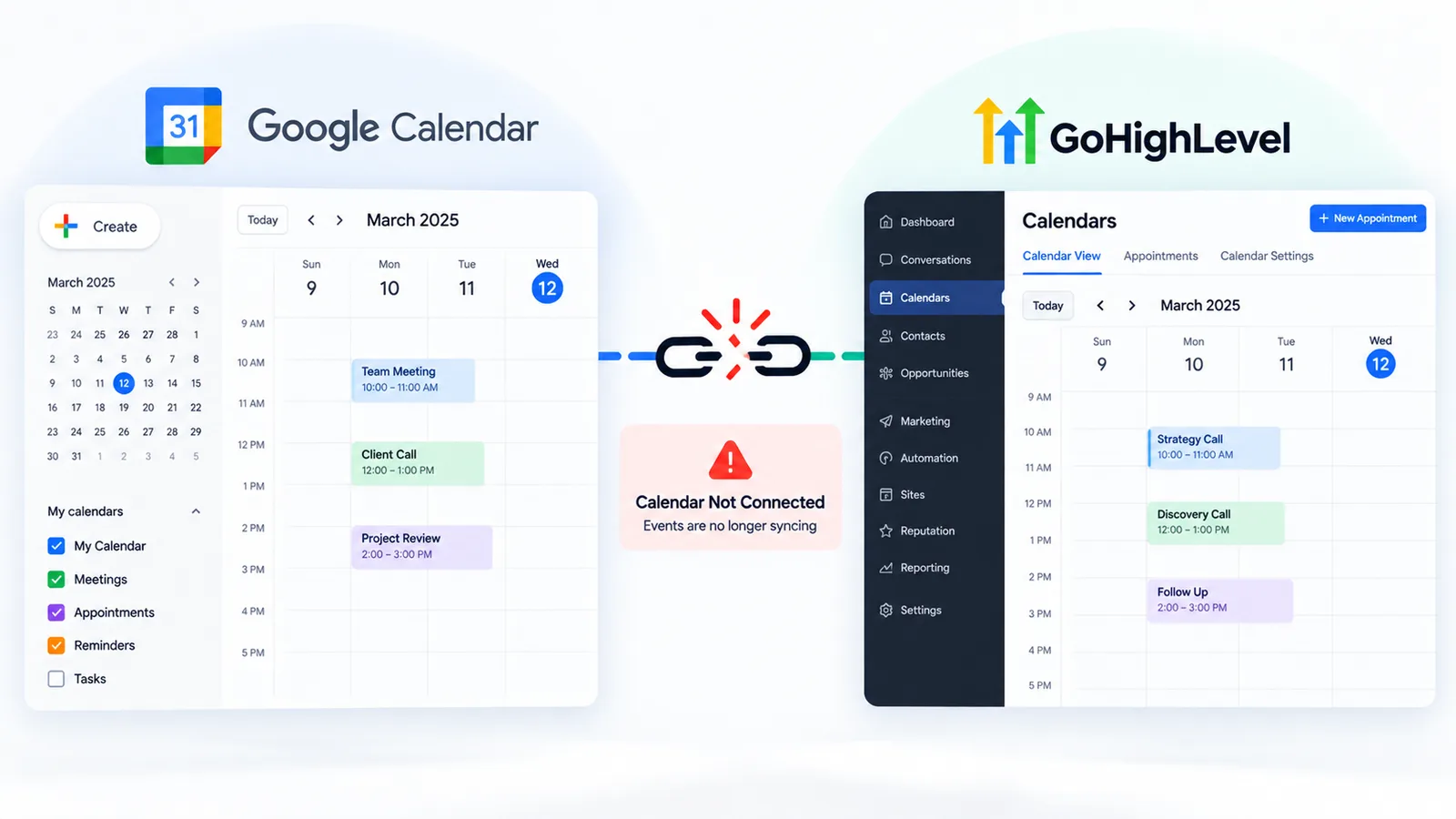
Why GoHighLevel Stops Syncing With Google Calendar
The integration relies on an OAuth connection between your GHL account and your Google account. That connection breaks more often than users expect, and not because of a platform bug. According to HighLevel's own support documentation ("Why Google Calendar Integration Breaks and How to Fix It"), the sync fails when any of the following happens: the connected Google account's password changes, calendar permissions get revoked (intentionally or accidentally), Google's security systems flag the connection as suspicious activity, or the OAuth token simply expires over time.
None of these are GHL malfunctions in the traditional sense. They're the normal lifecycle of an OAuth connection. Google periodically re-validates third-party app access, and anything that changes the account's security state (a password reset, a suspicious sign-in alert, a revoked app permission) can silently sever the link. GHL doesn't always surface a clear error when this happens. Appointments just stop showing up on the other calendar, and the first sign is usually a double-booking or a missed appointment.
- 1Is the integration still connected?
- 2Is the right calendar linked?
- 3Are conflict calendars set?
- 4Do the time zones match?
Fix 1: Full Disconnect and Reconnect
This is the most reliable fix and the one to try first. It forces GHL to request a brand-new OAuth token from Google instead of trying to repair a broken one.
- Go to Settings → My Profile → Calendar Settings
- Find the connected Google account and click the bin/delete icon to remove it
- Click "+ Add New" to reconnect
- Sign in with the Google account and approve the requested permissions again
HighLevel confirms that disconnecting and reconnecting does not delete previously synced past or upcoming appointments. The appointment records live in GHL's database, not in the OAuth connection itself, so removing and re-adding the calendar link is safe to do without a backup step first.
For the full booking widget and calendar setup, see our GoHighLevel for digital agencies guide.
Fix 2: The Toggle Trick for a Calendar Stuck Mid-Sync
Sometimes the OAuth connection is fine, but one specific calendar gets stuck and stops pushing new events. Disconnecting the whole account is overkill for this situation. HighLevel's own documented workaround is a configuration toggle that forces the sync engine to re-establish its link to that calendar without a full reconnect.
- Go to Settings → My Profile → Calendar Settings → Calendar Configuration
- Open Linked Calendar
- Change the setting to "Do not add new events to any calendar" and save
- Refresh the page
- Switch the setting back to the original calendar and save again
This works because it forces GHL to drop and re-establish its internal reference to the linked calendar, which clears whatever state caused new events to stop appearing. Try this before the full disconnect/reconnect if only one calendar configuration seems affected and everything else in the account looks normal.
Fix 3: Resolving Writer Access Errors
If GHL displays a writer access error, the problem isn't the OAuth connection at all. It's a permissions issue on Google's side, and the fix has to happen in Google Calendar, not in GHL.
Per HighLevel's support documentation on this error, here's the sequence:
- The actual owner of the Google Calendar (the account whose calendar is being written to) logs into calendar.google.com
- Opens Settings and Sharing for the specific calendar in question
- Adds the GHL-connected Google account to the sharing list
- Sets that account's permission level to "Make changes to events"
- Saves and gives it a few minutes to propagate
This error typically shows up when a calendar was originally shared with view-only or "see event details" access, which is enough for Google to let a person view the calendar but not enough for an app to create or update events on it. Double-check the permission level rather than assuming the account is already fully authorized just because it's on the sharing list.
One-Way Sync vs. Two-Way Sync: Why This Trips Up So Many Users
This is the part of the calendar integration most troubleshooting guides skip, and it causes more confusion than any actual bug. GHL's Google Calendar integration doesn't automatically behave as a full two-way sync unless it's configured that way, and the direction of sync determines what you should expect to see.
In a one-way sync (GHL to Google), appointments booked through GHL push out to the connected Google Calendar. That part works predictably. What it does not do is the reverse: an event you create directly in Google Calendar, or an existing Google Calendar commitment, does not automatically block that time slot from being bookable in GHL. If your calendar looks "synced" but people can still book appointments in GHL during times you've already blocked off in Google, you're looking at one-way sync behavior, not a bug.
In a two-way sync, GHL is configured to also read from Google Calendar and treat existing Google events as busy time, which then blocks those slots in GHL's booking availability. This is the behavior most users actually expect when they hear "calendar sync," but it depends on the sync direction being properly configured for that specific calendar connection, and a linked Google account alone is not enough.
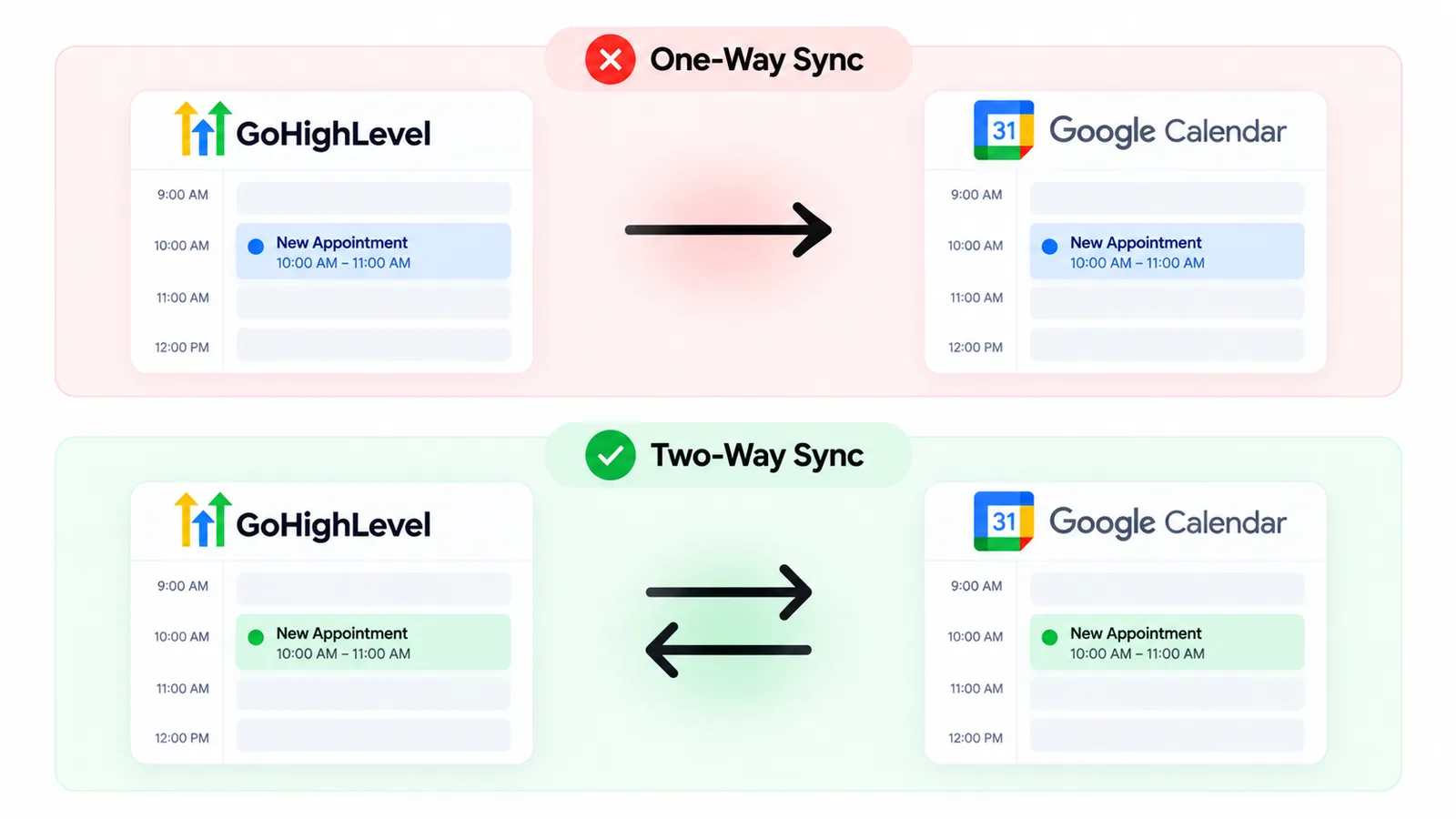
Before assuming your sync is broken, confirm which direction you actually configured. A significant share of "GHL isn't syncing with Google" support requests are really "GHL is syncing exactly as configured, but the configuration is one-way and the user expected two-way." Check the calendar's sync settings in GHL to verify which mode is active before troubleshooting further.
| Sync Mode | GHL Booking → Google | Google Event → Blocks GHL Availability |
|---|---|---|
| One-way sync | Yes, appears on Google Calendar | No, GHL can still be booked during that time |
| Two-way sync | Yes, appears on Google Calendar | Yes, GHL treats it as busy time |
Duplicate or Incorrect Events: A Known, Widely Reported Issue
If you're seeing duplicate events or events with incorrect details after a Google Calendar sync, you're not dealing with an isolated glitch. A thread on Google's own Calendar Community forum documents users reporting exactly this pattern with GHL-Google syncing, which corroborates that this is a common, recognized issue rather than something unique to your account setup.
When duplicates appear, the disconnect/reconnect fix (Fix 1 above) is the standard first step, since a fresh OAuth handshake often clears whatever caused the duplication. If duplicates persist after reconnecting, review whether the same Google account is connected to more than one GHL sub-account, which is a separate and increasingly common source of sync conflicts covered below.
Multiple Sub-Accounts, One Google Calendar: A Known Limitation
Connecting the same Google account to more than one GHL sub-account is a common setup for agencies and multi-location businesses managing several calendars from one Google login. It's also a documented source of confusion. HighLevel's own product "ideas" board has an open, unresolved feature request for automatic reconnection across sub-accounts, which indicates this remains a known limitation rather than something with a guaranteed one-step fix today.
If you manage multiple sub-accounts against a single Google account and notice sync issues cropping up repeatedly, consider whether a dedicated Google account per sub-account, or per major calendar, would reduce the surface area for token conflicts. This isn't a documented HighLevel-recommended fix so much as a practical workaround worth testing if sync problems keep recurring across a multi-account setup.
If you're managing snapshots across those same sub-accounts, see our guide on fixing stuck or failed snapshot imports, sub-account conflicts show up in both places for similar reasons.
How to Confirm the Sync Is Actually Fixed
After applying any of the fixes above, verify the connection rather than assuming it worked:
- Book a test appointment in GHL and confirm it appears on the connected Google Calendar within a few minutes
- If two-way sync is configured, create a test event directly in Google Calendar and confirm that time slot becomes unavailable in the GHL booking widget
- Check that existing appointments from before the fix are still present in GHL (they should be, since reconnecting doesn't remove appointment history)
- Repeat the same check for each calendar and each sub-account if you manage more than one
Setting up calendars from scratch? See GoHighLevel calendar setup. If the calendar loads slowly rather than failing to sync, work through why GoHighLevel is slow first.
Frequently asked questions about a GoHighLevel calendar not syncing
Why did my GoHighLevel calendar suddenly stop syncing with Google?
The most common cause is OAuth token expiration or revocation. This happens when the connected Google account's password changes, permissions get revoked, Google flags the connection as suspicious, or the token simply expires over time. A full disconnect and reconnect in Calendar Settings resolves most of these cases.
Will disconnecting and reconnecting my Google Calendar delete my appointments?
No, HighLevel confirms that disconnecting and re-adding the Google account does not delete previously synced past or upcoming appointments. The appointment data stays in GHL; only the connection itself is refreshed.
What does a "writer access" error mean in GoHighLevel's calendar integration?
It means the GHL-connected Google account doesn't have sufficient permission on the target Google Calendar to create or edit events. The calendar owner needs to open Settings and Sharing on calendar.google.com and grant that account "Make changes to events" permission.
Does GoHighLevel sync both directions with Google Calendar?
GoHighLevel does not sync both directions with Google Calendar automatically. A one-way sync pushes GHL appointments to Google but doesn't block GHL availability based on existing Google events. A two-way sync reads Google Calendar events back into GHL and treats them as busy time. Check your calendar's sync direction setting rather than assuming two-way behavior by default.
Why are duplicate events showing up after syncing with Google Calendar?
This is a known, commonly reported issue, not an isolated bug, corroborated by user reports on Google's own Calendar Community forum. Try a full disconnect and reconnect first. If duplicates continue, check whether the same Google account is linked to multiple GHL sub-accounts, which can compound sync conflicts.
Can I connect the same Google account to multiple GoHighLevel sub-accounts?
You can, but it's a known source of sync confusion. HighLevel's product ideas board has an open feature request for automatic reconnection across sub-accounts, meaning this remains an unresolved limitation. If you see recurring sync issues in a multi-sub-account setup, using separate Google accounts per sub-account can reduce conflicts.
How do I know if my calendar is stuck mid-sync versus fully disconnected?
If new appointments aren't appearing on one specific calendar but the rest of your GHL account and other calendars are functioning normally, it's likely a stuck sync rather than a broken connection. Try the toggle trick (switching the Linked Calendar setting off and back on) before doing a full disconnect and reconnect.
Need Help Fixing a GoHighLevel Calendar Integration?
If you've tried these fixes and your calendar still isn't syncing correctly, or you're managing multiple sub-accounts with recurring calendar conflicts, a second set of eyes on the configuration can save hours of trial and error.
Contact us and we'll take a look at your GoHighLevel calendar setup and help you get it syncing reliably.