GoHighLevel Workflows Not Triggering: Common Causes & Fixes
A GoHighLevel workflow that won’t trigger is almost always caused by one of six things: the workflow toggle is off, the trigger event never actually fired, entry filters are too strict, re-entry is disabled, internal branch logic redirects the contact silently, or a delay step references an empty date field. Work through these in order and you’ll usually find the stuck step without guessing or contacting support.
Quick Answer: Open the workflow, click Execution Logs, and find the contact’s record. The log shows exactly which step the contact stopped at and whether that step returned Success, Error, or Skipped. That single check resolves most “workflow not triggering” cases faster than manually rechecking every setting.
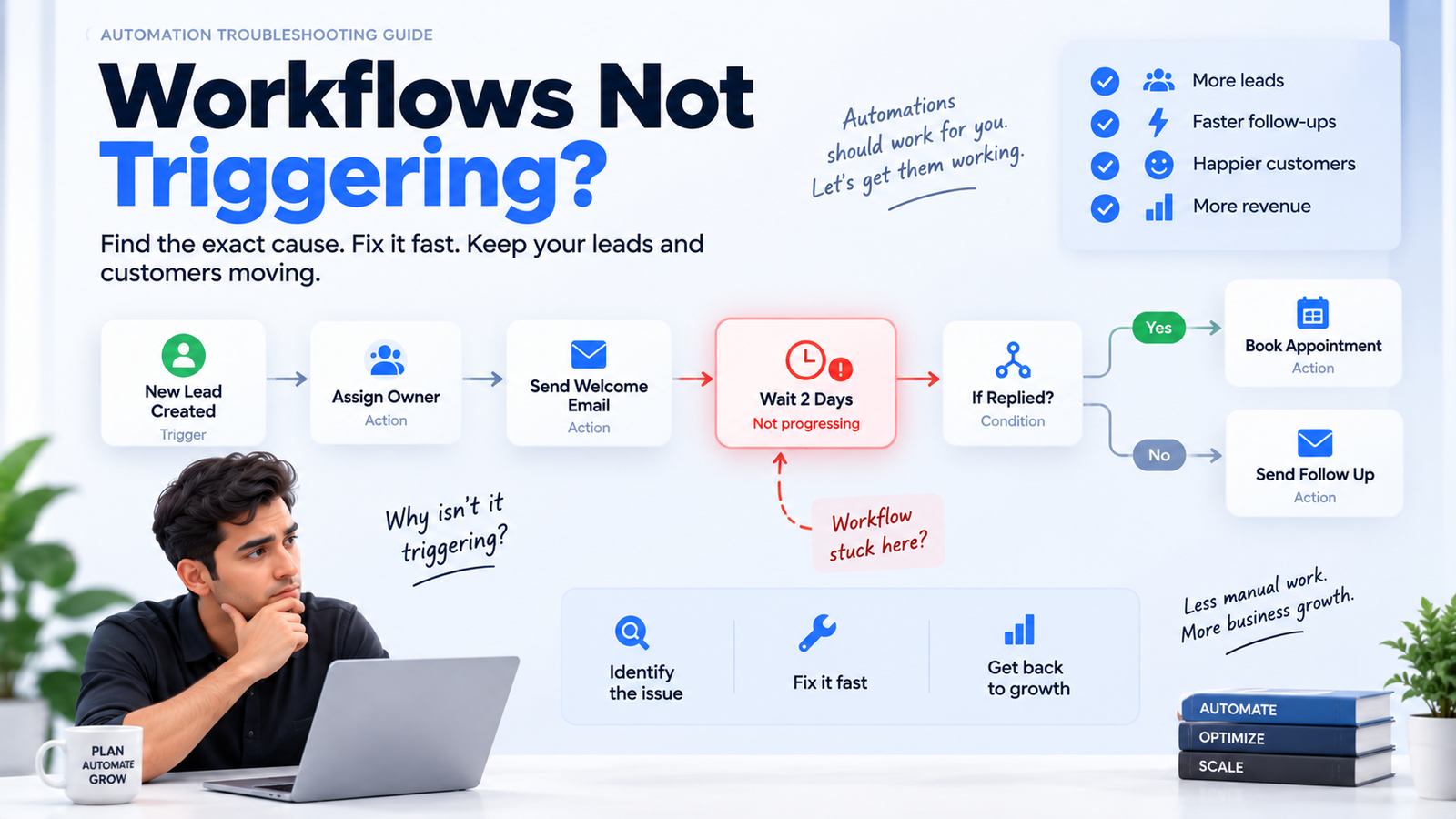
Workflows are the backbone of most automation builds we run for clients — see how they fit into a full setup in our GoHighLevel for digital agencies guide.
Why GoHighLevel Workflows Stop Triggering
Most “not triggering” reports fall into two categories: the workflow never started for a contact, or the workflow started and then stalled partway through. These require different diagnostic paths, and confusing them wastes time.
A workflow that never starts usually points to the trigger itself: the toggle, the trigger event, or entry filters. A workflow that starts but stalls usually points to what happens after entry: branch logic, re-entry rules, or a delay step doing unexpected math. The table below separates the six root causes by which category they fall into and how often each one shows up in practice.
| Cause | Category | How to Confirm It |
|---|---|---|
| Workflow toggled off / unpublished | Never starts | Check the publish/active toggle on the workflow list |
| Trigger event never fired | Never starts | Confirm the source action (form submit, tag applied) actually happened |
| Entry filters too strict | Never starts | Check the contact’s tags/custom fields against every stacked filter condition |
| Re-entry disabled | Stalls / ignored | Check “Allow Multiple” setting and the contact’s current status in the workflow |
| Branch/filter logic inside the workflow | Stalls | Trace if/else steps in Execution Logs for a “no matching branch” outcome |
| Delay step math error | Stalls | Check whether the delay references a custom date field that’s empty |
Root Cause 1: The Workflow Is Toggled Off or Unpublished
This is the most common cause, and it’s the fastest to rule out. Open the workflow list and confirm the specific workflow shows as active or published, not just saved as a draft. A workflow can be fully built and look correct in the builder while still being inactive, which means it will never fire for anyone.
If the workflow was recently edited, GHL sometimes requires republishing before changes take effect. Save the workflow, then explicitly confirm it’s live before assuming the logic itself is broken.
Root Cause 2: The Trigger Event Never Actually Fired
The second most common cause isn’t a workflow bug at all: the event that’s supposed to start the workflow never happened. A form submission trigger won’t fire if the form wasn’t actually submitted, if the contact submitted a different form, or if the submission failed validation before reaching GHL. A “tag applied” trigger won’t fire if the tag was added through a process that doesn’t route through GHL’s automation engine, or if the tag name doesn’t exactly match what the trigger is listening for.
Before assuming the workflow is misconfigured, verify the trigger event at the source. Check the contact record for the tag, the form submission history, or whatever action the trigger depends on. If the event genuinely didn’t happen, the workflow is working exactly as designed.
Root Cause 3: Entry Filters Are Too Strict
Stacking multiple filter conditions on a single trigger requires every incoming contact to match all of them simultaneously. If a lead is missing one tag or has a blank custom field value, the entire filter set fails and the contact is silently blocked from entering, with no error message and no notification (HighLevel Support Portal, “Troubleshooting Workflows”).
This is a common gap because the filters look correct in isolation. The problem only appears when you check a specific contact against every condition at once. Open the contact record, list out every filter condition on the trigger, and check each one individually. It’s common to find that one condition, often a custom field that’s supposed to be populated by an earlier step, is actually empty for that contact.
Root Cause 4: Re-Entry Is Disabled
If a contact is still active in the workflow, or has already completed it, and the “Allow Multiple” (re-entry) setting is turned off, a second trigger event for that same contact is silently ignored, a behavior independently documented by GHL agencies working with this setting (NewMotion IT). No error is logged from the contact’s perspective; the workflow simply doesn’t start again.
This surfaces most often with workflows meant to run repeatedly, such as an appointment reminder sequence or a re-engagement campaign that should fire every time a contact meets certain conditions again. If contacts are only supposed to go through a workflow once, leaving re-entry off is correct. If the workflow is meant to repeat, check the re-entry setting first when a returning contact doesn’t retrigger it.
Root Cause 5: Branch or Filter Logic Inside the Workflow Redirects the Contact
Even after a contact enters a workflow successfully, if/else steps and internal filter branches can quietly stop progress. If a contact doesn’t match any of the configured branch conditions, some workflows have no “catch-all” path, and the contact ends up in a “no matching branch” state with no further action taken.
This is different from the entry filter problem because the workflow did start, it just stopped partway through. The fix is to review every if/else and branch step for a default or “else” path that catches contacts who don’t match the primary conditions, so nobody gets routed into a dead end.
Root Cause 6: A Delay Step References an Empty Date Field
This is a GHL-specific gotcha that catches experienced builders off guard. If a delay step is configured to wait until a certain amount of time relative to a custom date field, and that field is empty for a given contact, the delay step can silently fail to resolve, effectively killing the workflow at that step with no downstream action ever firing.
Check any delay step that references a custom date field (appointment date, contract signed date, last purchase date) and confirm the field is actually populated for the contacts getting stuck. If the field is sometimes empty, either add a filter earlier in the workflow to catch that case or set a fallback value before the contact reaches the delay step.
The 6-Step Elimination Checklist
Work through these checks in order. They’re ranked by how frequently each one turns out to be the actual cause, so starting at the top resolves most cases in the first two or three steps.
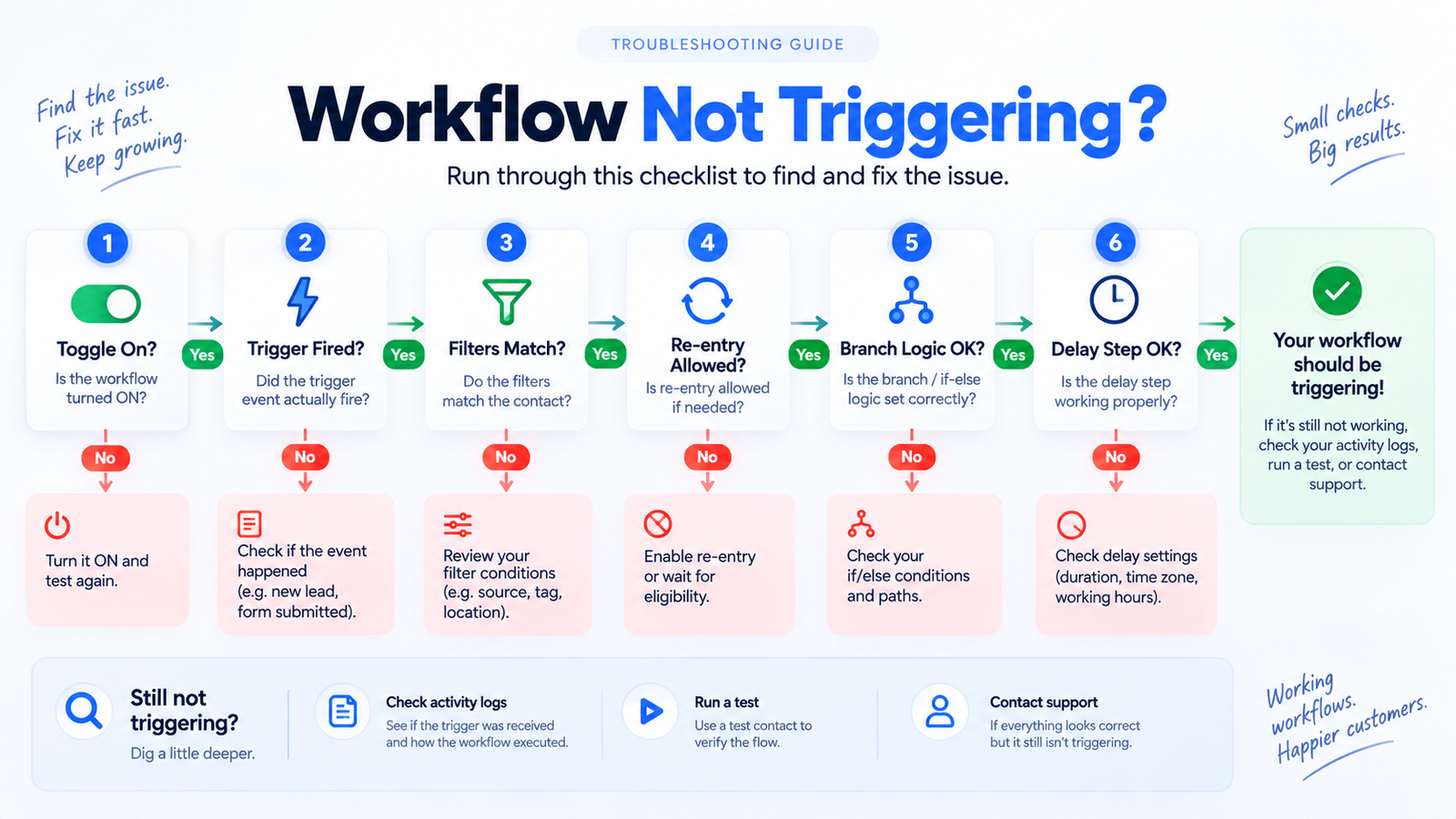
- Is the workflow toggled on and published? Confirm in the workflow list, not just the builder view.
- Did the trigger event actually fire? Check the contact record for the form submission, tag, or action the trigger depends on.
- Do the contact’s tags and custom fields match every entry filter? Check each stacked condition individually against the specific contact.
- Is re-entry allowed, if the contact has been through this workflow before? Check the “Allow Multiple” setting.
- Does the contact match a defined branch, or is it hitting a dead end? Trace if/else steps for a missing default path.
- Does any delay step reference a custom date field that could be empty? Confirm the field is populated for affected contacts.
If the trigger event depends on SMS delivery, also confirm your A2P 10DLC campaign is approved — a rejected campaign can silently block the messages that were supposed to fire the workflow.
How to Read Execution Logs
Execution Logs is HighLevel’s own diagnostic tool for this exact problem, and it should be the first stop for any contact who reports the workflow “didn’t work,” not the last resort after manually rechecking settings. Open the specific workflow, click Execution Logs, and search for the contact in question. The log traces exactly which step the contact reached and what happened there.
Each step in the log shows one of three states, and knowing what each one means saves significant troubleshooting time.
| Status | What It Means | What to Check Next |
|---|---|---|
| Success | The step executed as configured and the contact moved forward | Move to the next step in the log to find where progress actually stopped |
| Error | The step attempted to run but failed, often due to a misconfiguration, missing integration permission, or invalid data | Open that specific step’s settings and check the referenced field, integration, or action for a configuration problem |
| Skipped | The step was bypassed, commonly because a branch/filter condition wasn’t met or the contact didn’t qualify | Review the condition attached to that step against the contact’s actual tags and field values |
Reading down the log from entry to the point where progress stops turns a vague “it’s not working” report into a specific, fixable step. This is faster and more reliable than opening every step in the builder and re-checking settings one by one.
Where to Find Official HighLevel Documentation
HighLevel maintains several help center resources that cover this territory directly and are worth bookmarking for future troubleshooting:
- Getting Started with Workflows, covering the basic building blocks of triggers, actions, and conditions
- Workflow Settings Overview, covering re-entry, time windows, and other configuration options that affect whether a workflow fires
- Highlighting & Resolving Errors in a Workflow, covering how to interpret error states inside the builder and Execution Logs
These are official HighLevel help center resources; search the current help center for the latest version of each article, since content organization can change over time.
Frequently Asked Questions
Why is my GoHighLevel workflow not triggering at all?
Start with the workflow toggle and confirm it’s published and active, not saved as a draft. If it’s active, confirm the trigger event actually happened for the affected contact (form submission, tag applied, etc.). If the event happened, check every entry filter condition individually against that contact’s tags and custom fields, since one missing value silently blocks entry.
Why does a workflow work for some contacts but not others?
This pattern usually points to entry filters or branch logic rather than the workflow being broken overall. Compare a contact who successfully entered against one who didn’t, and check every filter condition and custom field value side by side. A missing tag or blank field on the failing contact is the most common explanation.
Why doesn’t a workflow retrigger for a returning contact?
Check the re-entry setting (“Allow Multiple”). If it’s turned off and the contact is still marked active or has already completed the workflow, a new trigger event for that contact is silently ignored. Turn on re-entry if the workflow is meant to run more than once per contact.
How do I check why a specific contact got stuck in a workflow?
Open the workflow, click Execution Logs, and search for that contact. The log shows every step the contact reached along with a Success, Error, or Skipped status for each one. The point where the log stops progressing, or where a step shows Error or Skipped, is where the problem lives.
What does “Skipped” mean in GoHighLevel Execution Logs?
A Skipped status means the step was bypassed, most commonly because a branch or filter condition attached to that step wasn’t met by the contact. Review the condition on that specific step and compare it against the contact’s actual tag and field values.
Can a delay step actually stop a workflow permanently?
Yes, if the delay is configured relative to a custom date field and that field is empty for the contact, the delay step can fail to resolve and the workflow effectively stalls at that step. Check any delay step tied to a custom date field and confirm the field is populated for the contacts who are stuck.
Where does HighLevel document workflow troubleshooting officially?
HighLevel’s help center includes “Getting Started with Workflows,” “Workflow Settings Overview,” and “Highlighting & Resolving Errors in a Workflow,” which cover trigger setup, re-entry and settings behavior, and how to interpret error states.
Need Help Diagnosing a Stuck GoHighLevel Workflow?
If you’ve worked through the checklist above and a workflow is still not triggering the way you expect, a second set of eyes on the Execution Logs and workflow architecture often finds the issue quickly.
Contact us for help troubleshooting your GoHighLevel workflows.
About the Author
Yash Patel is the founder of HighLevel Automation Team (HAT), a specialized GoHighLevel agency that has helped 450+ businesses implement, optimize, and troubleshoot their CRM and automation systems across 25+ industries.
Connect with Yash Patel on LinkedIn.